
Reducing visual effects can improve system performance, especially on older hardware.
Switching to High Performance power mode can boost CPU and GPU performance.
Daily Activity Pattern
⏱ Break Timer
Recommendations
Night Light reduces blue light to help you sleep better. Choose a schedule preset below, then click Open Settings to apply it in Windows.
Focus Mode combines Night Light, reduced notifications, and a Pomodoro timer for distraction-free work.
> netsh winsock reset — Reset Winsock catalog
> netsh int ip reset — Reset TCP/IP stack
> ipconfig /release — Release current IP
> ipconfig /renew — Obtain new IP address
> ipconfig /flushdns — Clear DNS resolver cache
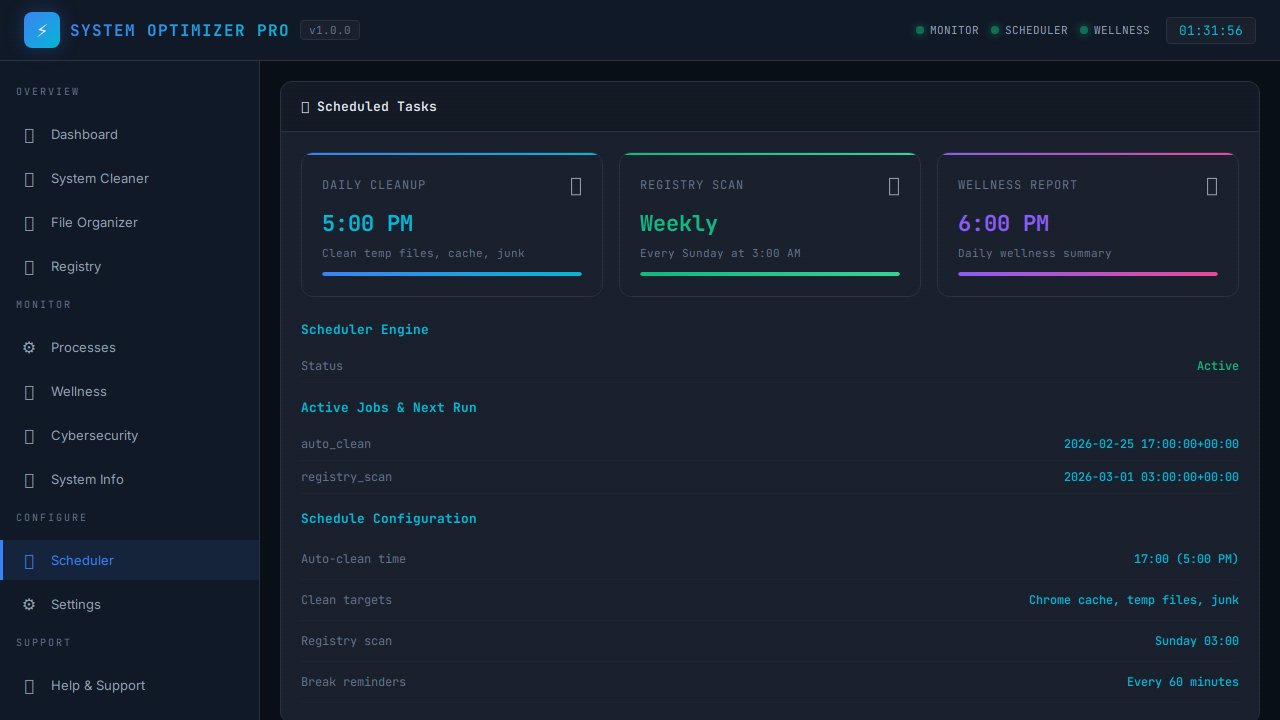
Scheduler Engine
Active Jobs & Next Run
Schedule Configuration
❓ Help & Support
Learn how to use every feature of MTT Windows Infinite Optimizer
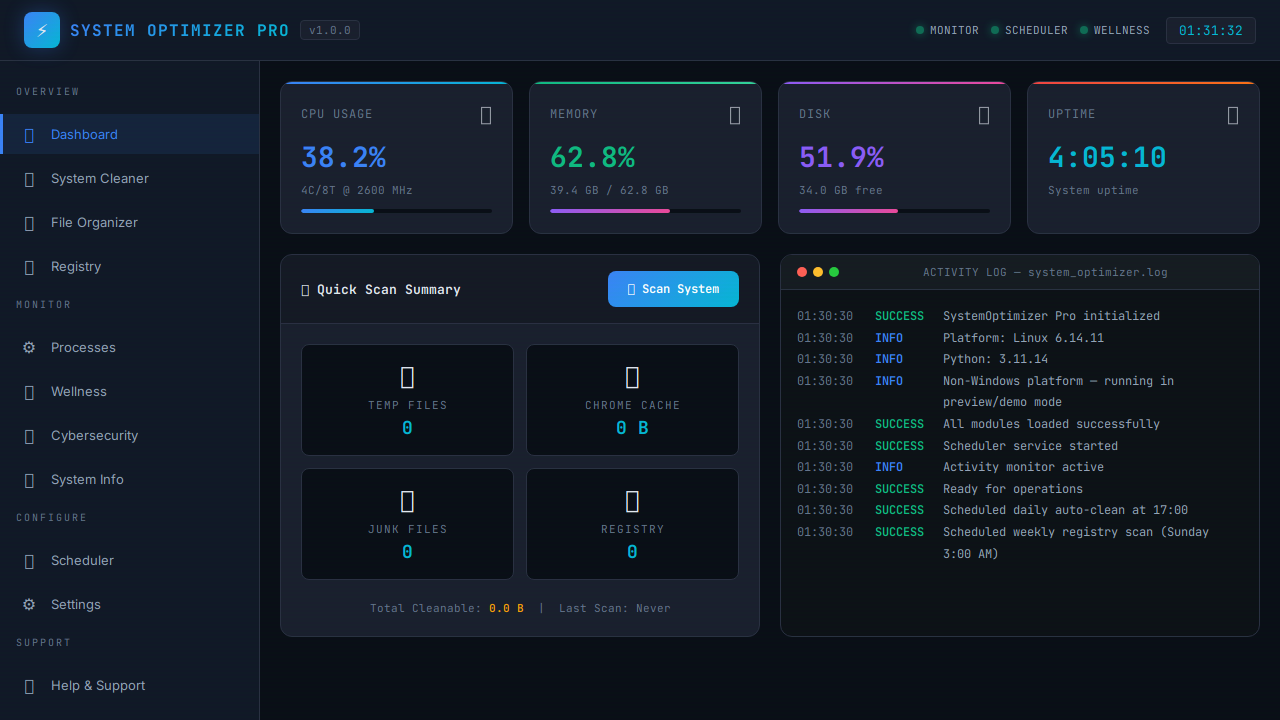
The Dashboard is your home screen showing real-time system health at a glance.
- CPU Usage — Shows current processor load, core count, thread count, and clock speed. Color changes from blue to purple to red as load increases.
- Memory — Displays RAM usage as a percentage with used/total breakdown. Bar turns red above 80%.
- Disk — Shows how full your main drive is with free space remaining.
- Uptime — How long your system has been running since last reboot.
- Quick Scan Summary — Shows counts of temp files, browser cache, junk, and registry issues from the last scan.
- Activity Log — Terminal-style log window showing all operations in real-time.
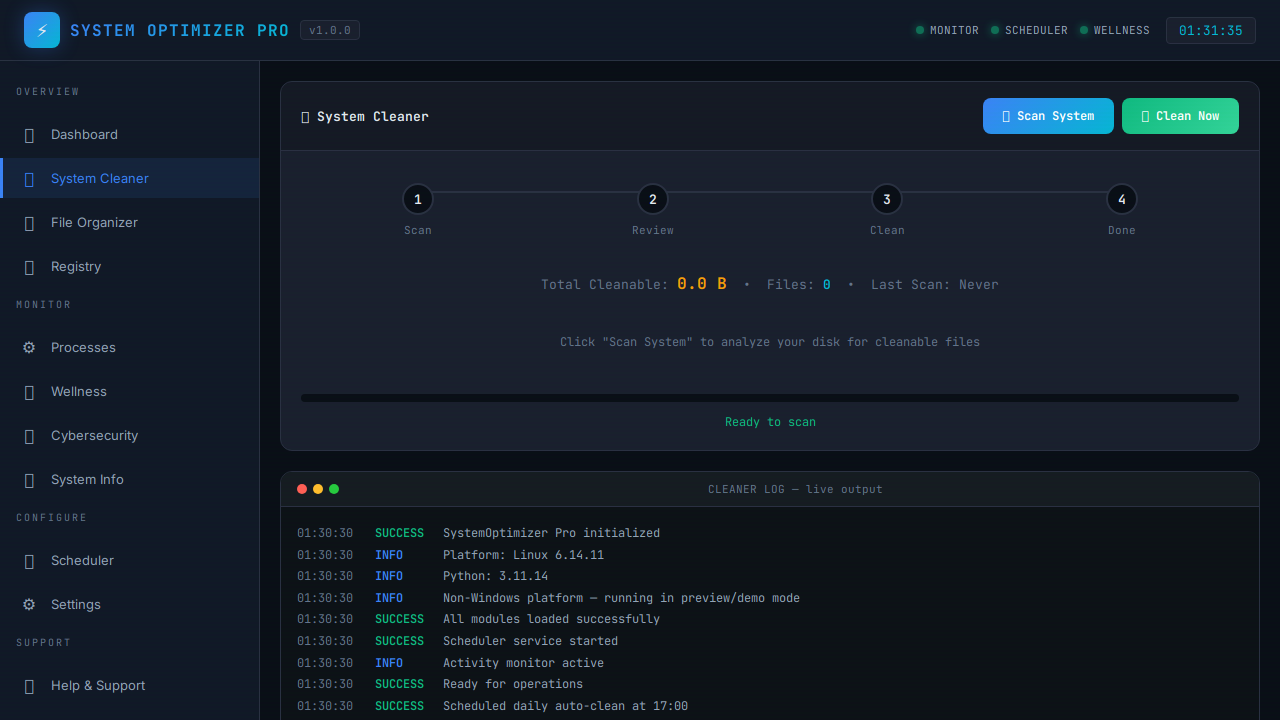
The System Cleaner finds and removes unnecessary files that waste disk space.
- How to use: Click "Scan System" on the Dashboard to detect junk files, then go to System Cleaner to see results by category.
- Categories: Temp files (system & user), browser cache (Chrome, Edge, Firefox), Recycle Bin, thumbnails, DirectX shader cache, error reports, delivery optimization files, log files, and more.
- Caution items: Windows Update Cleanup and Windows.old are marked with a caution badge — these free significant space but cannot be undone.
- Cleaning: Click "Clean System" to delete all detected files. Progress shows in the activity log.
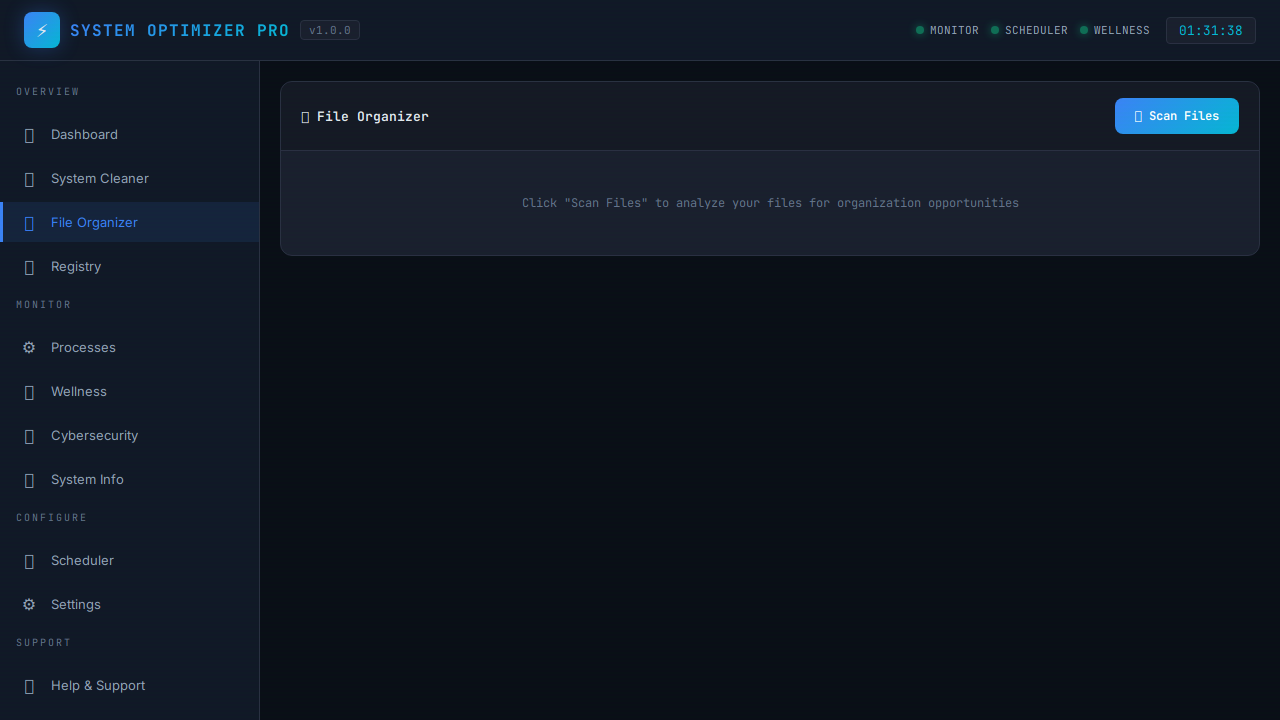
The File Organizer helps you find and remove problematic files in your user directories.
- Zero-Length Files — Finds empty files (0 bytes) that serve no purpose and can be safely removed.
- Duplicate Files — Uses MD5 hashing to detect files with identical content, even if names differ. Review before deleting — keep at least one copy.
- Leftover Installers — Finds .exe and .msi installer files in Downloads and other folders that can be removed after software is installed.
- How to use: Click "Scan Files" to start detection. Check the boxes next to files you want to remove, then click "Delete Selected".
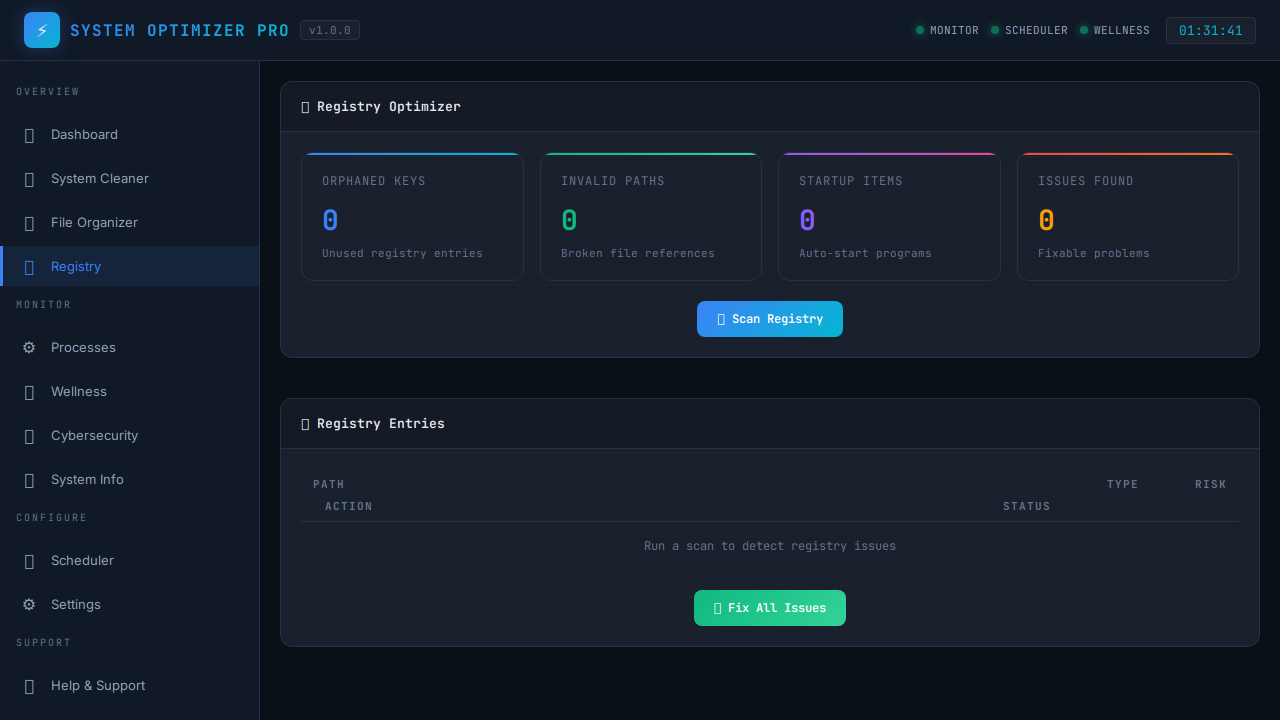
The Registry Optimizer scans the Windows registry for issues that can slow down your system.
- Issue Detection: Finds invalid file associations, orphaned entries, unused startup items, and stale uninstall keys.
- Recommendations: Each issue comes with a specific recommendation explaining what it is and why it should be fixed.
- One-Click Fix: Click the "Fix" button next to any issue to apply the recommended fix automatically.
- Fix All: Use "Fix All Issues" to resolve everything at once.
Monitor running processes and manage startup programs to speed up boot times.
- Process List: Shows the top processes by CPU and memory usage, updated in real-time every 3 seconds.
- Startup Items: Lists programs that run automatically when Windows starts. Toggle them on/off to control boot speed.
- Reboot: After disabling startup items, use the Reboot button to restart your system and apply changes.
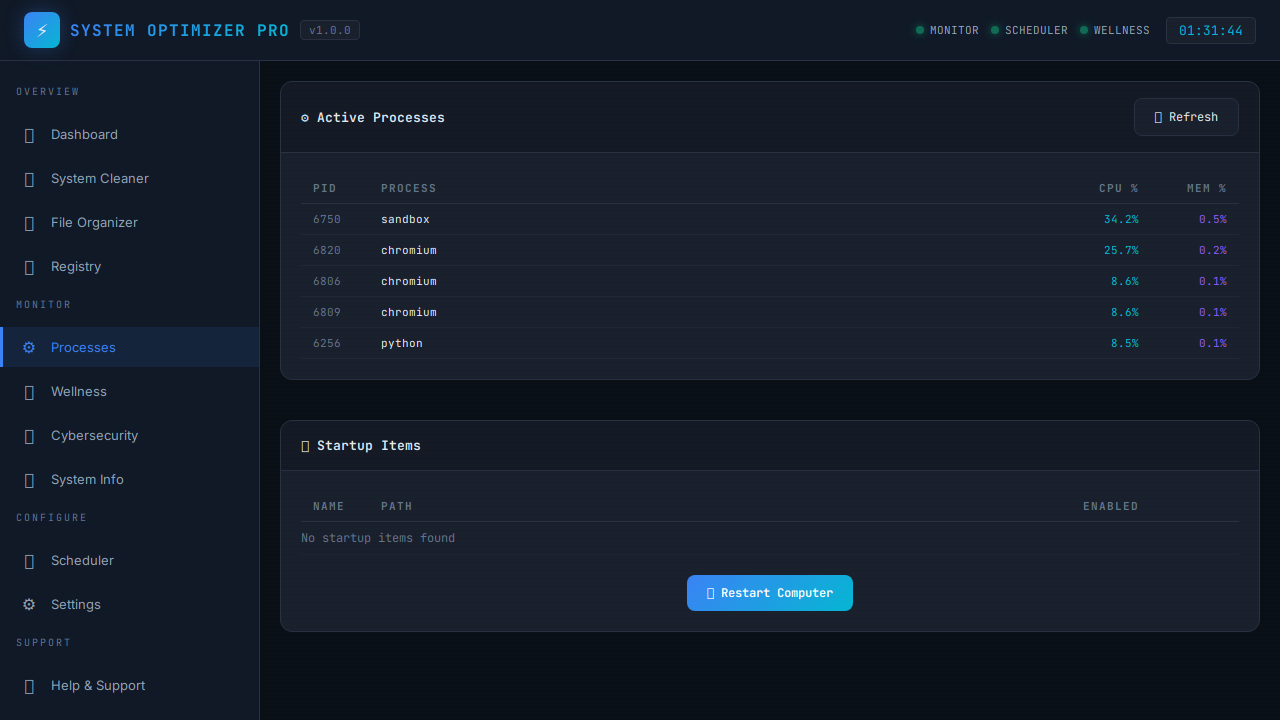
The Wellness Monitor helps you maintain healthy computing habits with break reminders and activity tracking.
- Break Timer: A 40-minute countdown timer. When it reaches zero, a sound alert plays and a popup reminds you to take a break.
- Wellness Score: A gauge showing your overall wellness based on active vs. idle time balance.
- Activity Tracking: Tracks active minutes, idle minutes, and break count — all privacy-friendly (no keylogging).
- Screen Brightness: Provides suggestions for optimal screen brightness based on time of day.
- Dismiss: Click "Dismiss" on the break popup to reset the timer for another 40 minutes.
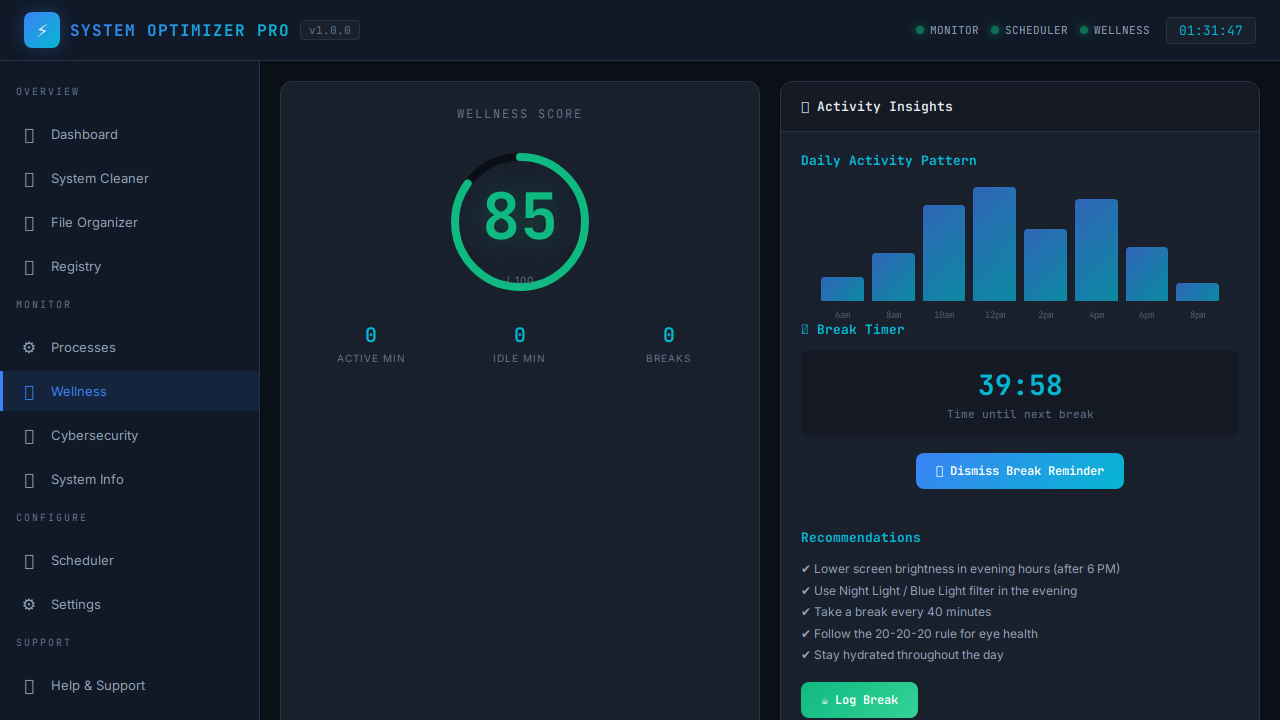
Scan your system for potential security vulnerabilities and monitor network activity.
- Port Scanner: Checks 11 common ports (HTTP, HTTPS, FTP, SSH, SMB, RDP, MySQL, etc.) to see if they're open and potentially exposed.
- Active Connections: Shows all current network connections with local/remote addresses, ports, and connection status.
- Public IP: Displays your public-facing IP address so you can verify your network identity.
- Vulnerabilities: Highlights security risks like open ports, missing firewall, or outdated services.
- How to use: Click "Run Security Scan" and wait for results. Review any flagged vulnerabilities.
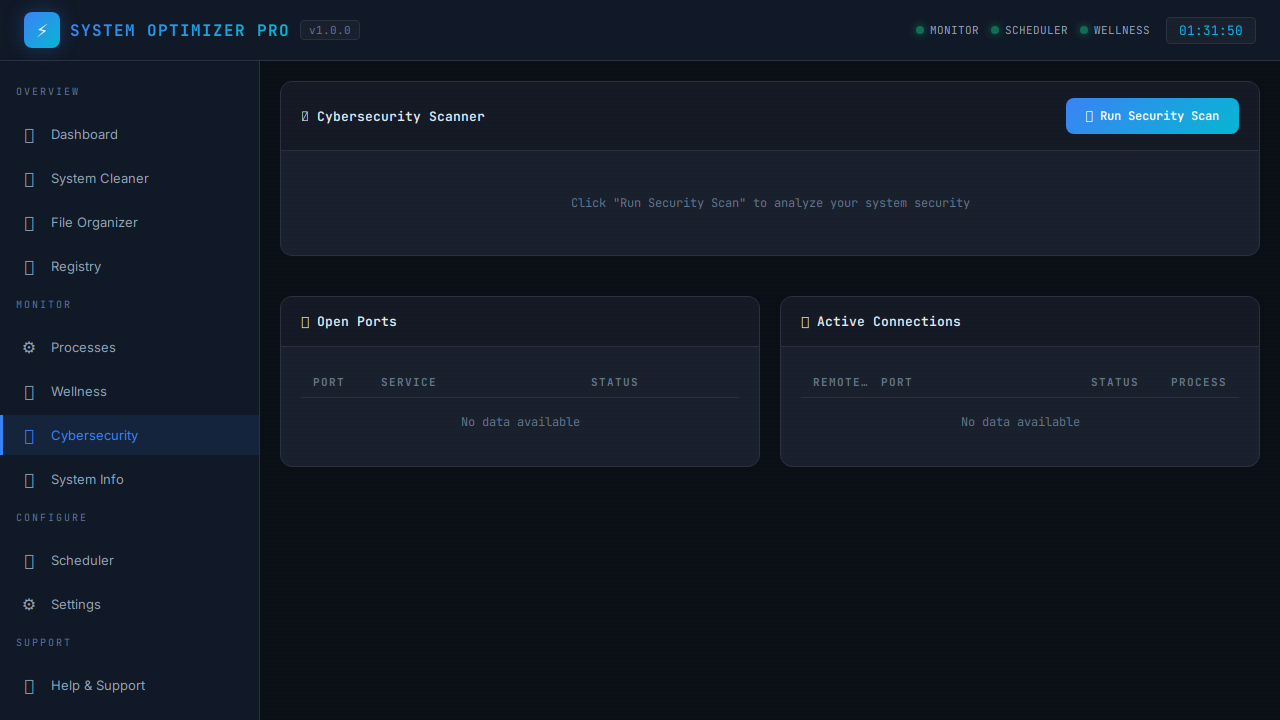
Detailed system specifications with RAM upgrade recommendations and deep file analysis.
- System Details: Platform, release, machine type, processor, boot time, and CPU core/thread breakdown.
- RAM Details: Installed memory, max capacity, slots used/total, and RAM type (DDR3/DDR4/DDR5).
- RAM Upgrade Guide: Shows compatible RAM types, supported speeds, form factor (DIMM/SO-DIMM), voltage, and specific upgrade options based on your motherboard.
- Motherboard: Manufacturer, product name, and serial number.
- Deep Analysis: Click "Run Deep Analysis" to count files by type (video, images, documents, audio) with total sizes and installed software count.
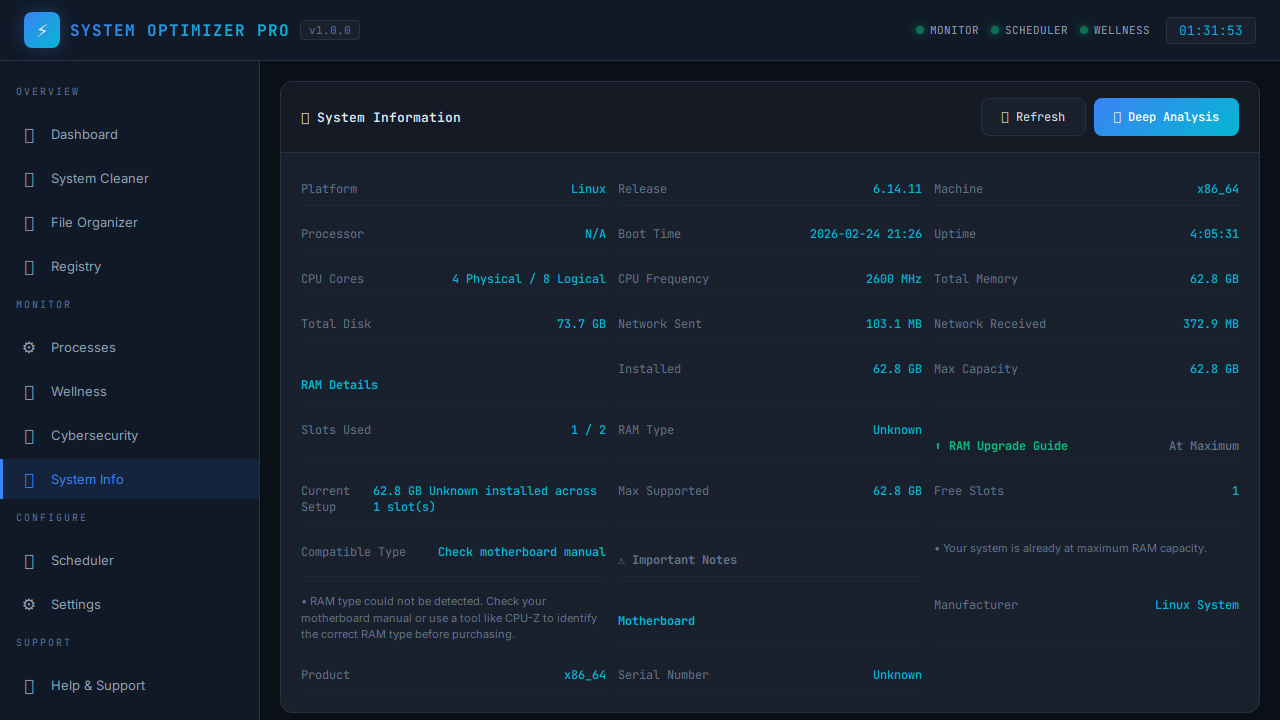
Automate system maintenance with scheduled cleanup and registry scan tasks.
- Daily Cleanup: Runs automatically every day at 5:00 PM (configurable). Cleans all enabled categories from your Settings.
- Weekly Registry Scan: Automatically scans the registry every Sunday at 3:00 AM for issues.
- Status: Shows when each task last ran and when it will run next.
- Configuration: Adjust the cleanup time in Settings. Toggle auto-clean on/off.
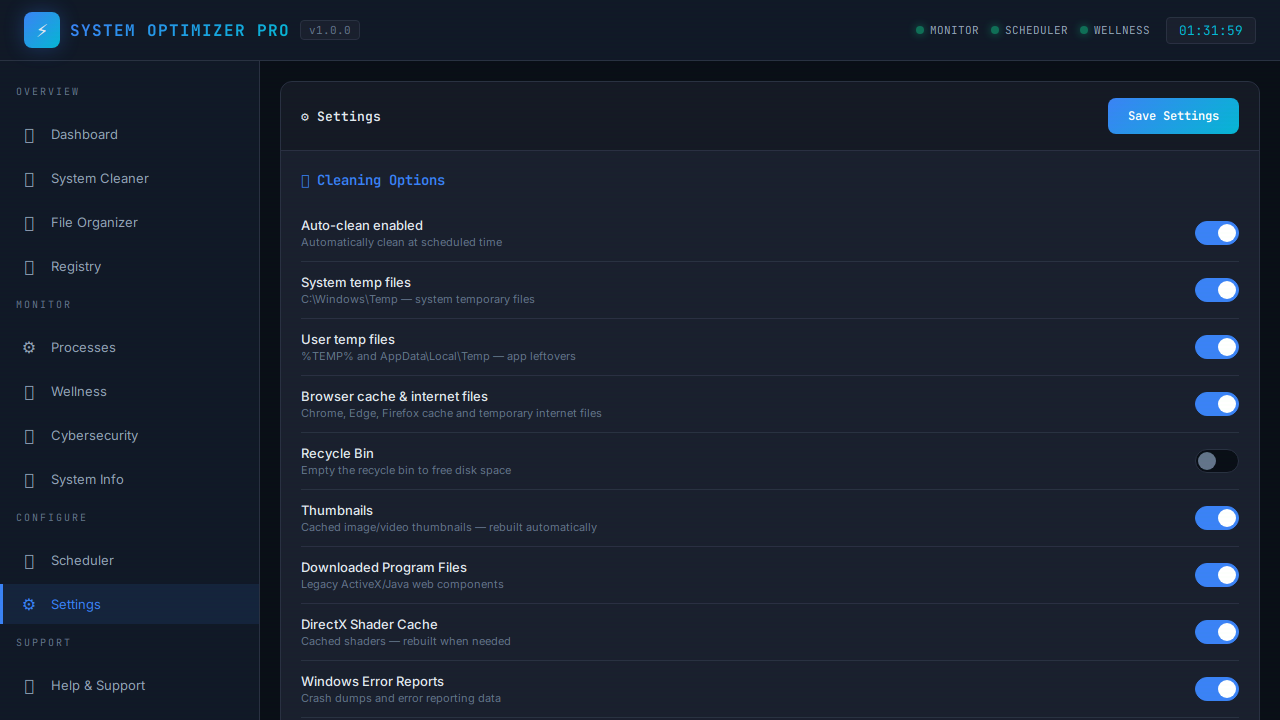
Customize every aspect of MTT Windows Infinite Optimizer with toggle controls that persist across restarts.
- Cleanup Categories: Toggle each of the 13+ cleanup categories individually. Disabled categories are skipped during both manual and automated scans.
- Feature Toggles: Enable/disable wellness monitoring, activity tracking, and other features.
- Persistence: All settings are saved to settings.json and automatically loaded on startup.
- How to use: Simply click the toggle switches. Changes are saved immediately.
MTT Windows Infinite Optimizer v1.1.0
A comprehensive Windows system utility designed for power users who want full control over their system's performance, security, and maintenance.
- Windows 10 or Windows 11
- Python 3.8+ (for source) or standalone installer
- Administrator privileges recommended for full functionality
- Minimum 2 GB RAM, 50 MB disk space
📜 End User License Agreement
Master EULA — Macro Tech Titan, Inc.